January 2026 | Written by Voicertool Team
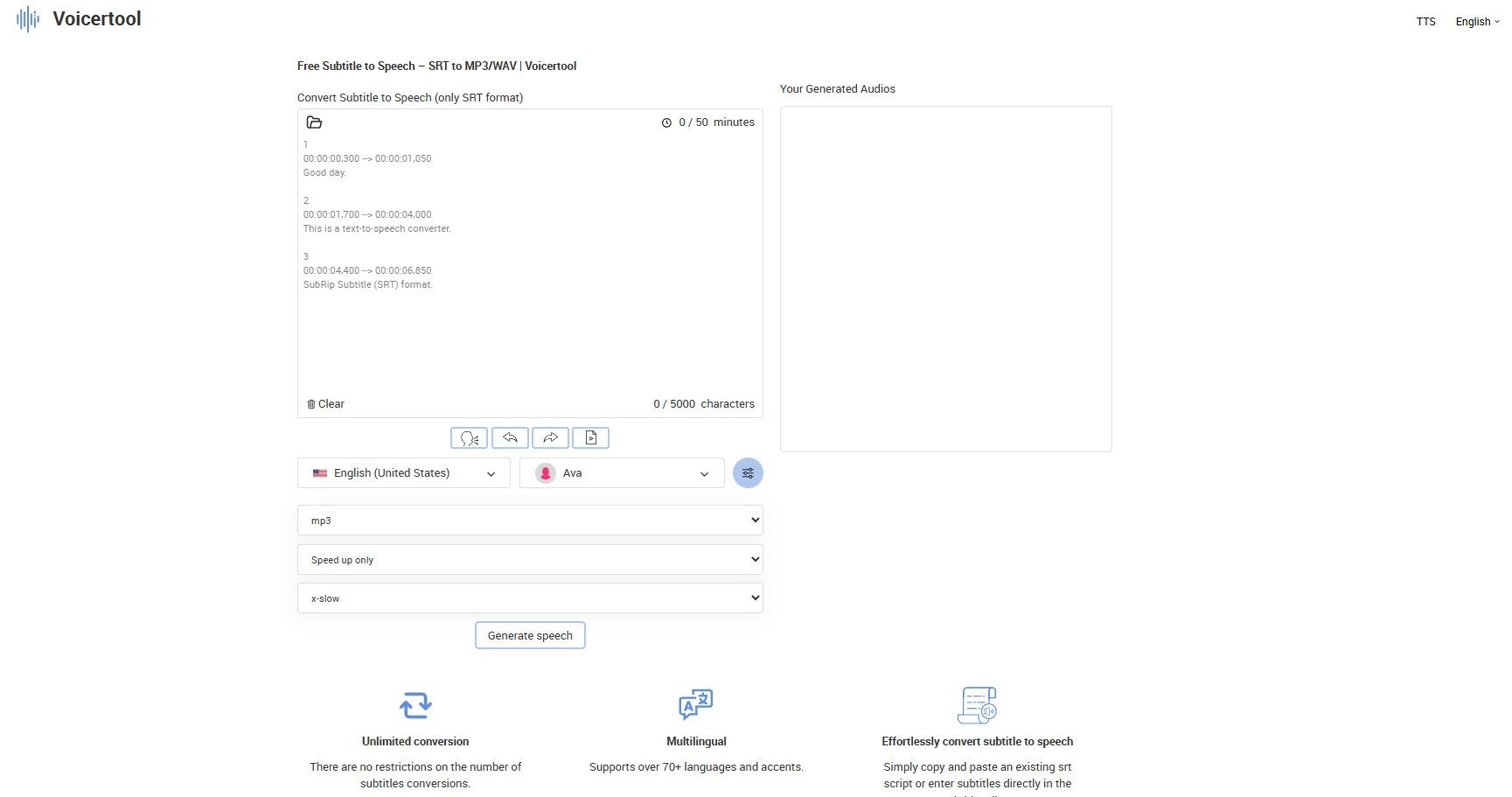
Dubbing a video used to take hours of manual syncing. I've tested many tools, and most either break the timing or cost a fortune. Today, I'll show you how to use Voicertool's Subtitle-to-Speech (STS) to get perfectly synchronized voiceovers from an SRT file for free.
Upload your SRT (up to 5000 characters), pick a voice, and download MP3 or WAV files instantly. No registration, limits, or watermarks. Perfect for video editors, audiobooks, localization, podcasts, and more. Let's dive into the steps, tips, and real-world examples.
Advanced AI for Perfect Synchronization
STS analyzes SRT timestamps and generates audio that matches exactly (up to 5000 characters per file):
- Perfect timing — syncs to subtitle duration
- Emotional intonation based on context
- Natural breathing pauses
- Regional accents in 70+ languages
Step-by-Step Guide: SRT → Dubbing
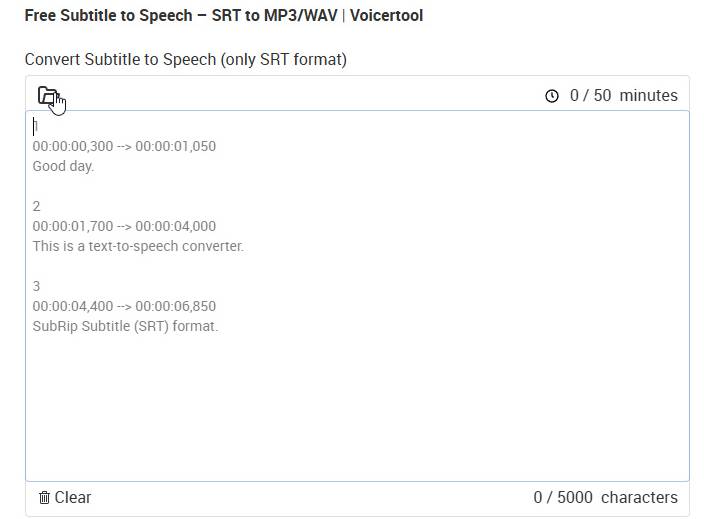
Step 1: Upload SRT File
Click "Upload Subtitles". Supports standard SRT with timestamps (up to 5000 characters). Upload your SRT file here to start.
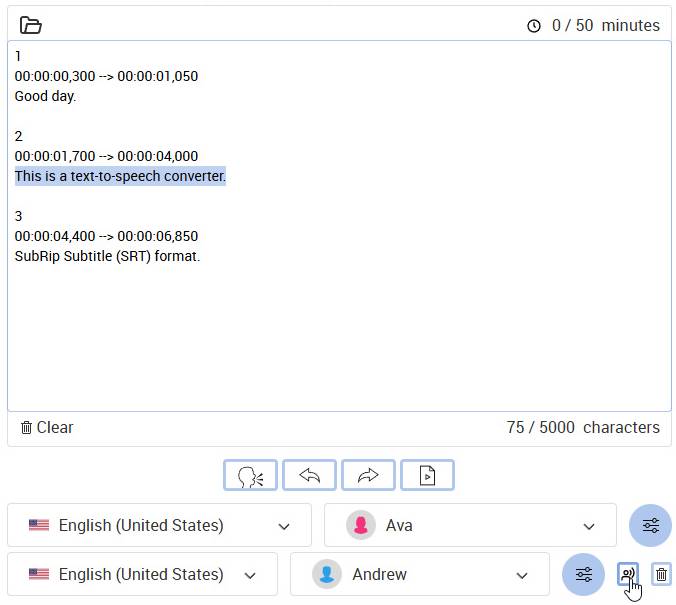
Step 2: Select Language and Voice
Choose from 300+ voices. Click Play for preview — test a few to match your video's tone.

Step 3: Adjust Settings (Optional)
Fine-tune pitch, volume, or speed mode: "Speed up only" or "Speed up and slow down" for natural pacing.

Step 4: Create Dubbing — Click "Adjust Settings"
The list of languages and voices appears. Highlight any text line and click "Wrap text" to optimize length.

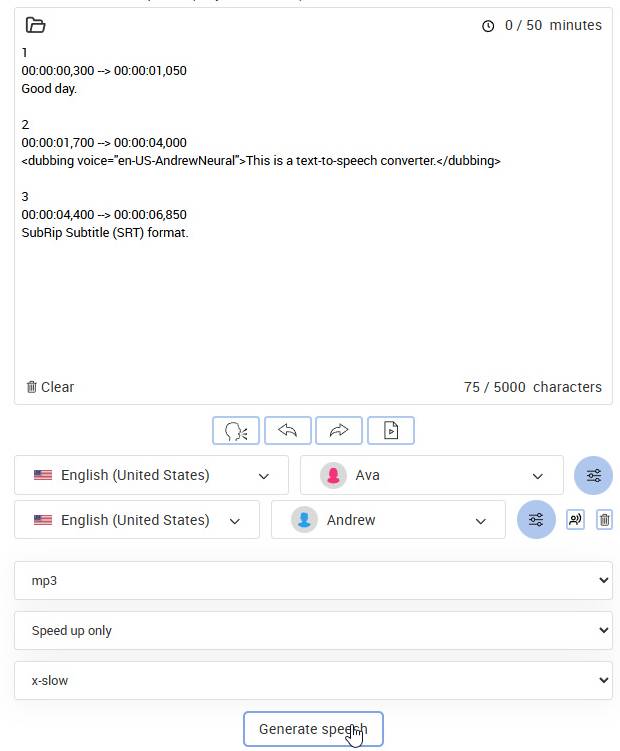
Step 5: Generate Speech
Click "Generate speech". It processes each subtitle individually, preserving exact timing.
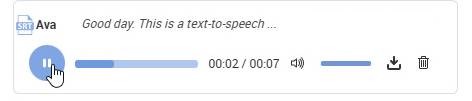
Step 6: Click Play to Listen
- Listen instantly in browser.
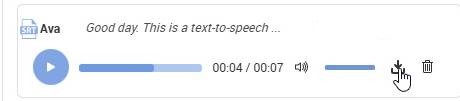
- Download MP3: Compact format for web/videos.
- Download WAV: Studio quality for pro editing.
Tips for AI Dubbing: Pro Subtitle Examples
- Long sentences? If a line exceeds subtitle timing, AI speeds up unnaturally. Solution: Shorten phrases or use "Speed up only" mode in Step 3 for better flow.
- Emotional emphasis: "Welcome to Voicertool... the best free TTS!" — ellipses add drama and natural pauses.
- Fast dialogue: "Upload SRT, select voice — get perfect MP3 timing!" — em dash (—) creates punchy rhythm.
- Narration pauses: "Natural breathing... emotional depth... ready for video." — works like a pro script.
Voicertool STS Specifications
- Voices: 300+ (male/female, various accents)
- Languages: 70+ (European, Asian dialects)
- Input: SRT with timestamps
- Export: MP3/WAV, fully synchronized
- Limits: None — up to 5000 characters, no registration
7 Tips for Professional Subtitles
- Limit lines to 250 characters for natural reading pace.
- Avoid ALL CAPS — it sounds robotic in AI voices.
- Use numbers as words: "two thousand" vs. "2000".
- Keep sentences under 15 words.
- Always test voice preview first.
- Add ellipses (...) for pauses and drama.
- Export SRT from Premiere, CapCut, or other editors.
STS Comparison with Standard Tools
| Feature | Voicertool STS | Standard Tools (e.g. Adobe Premiere, Manual Dubbing) |
|---|---|---|
| Subtitle Formats | SRT (full auto-sync) | SRT (manual alignment required) |
| Voices | 300+ realistic AI | Limited stock or hire talent ($50+/hr) |
| Synchronization | Perfect automatic | Hours of manual editing |
| Price | FREE | $20–200+ per project |
| Export | MP3/WAV instant | Export + manual sync |
Proven Use Cases
- Video Narration: SRT → MP3 → drop into Premiere Pro. Instant perfect sync for tutorials.
- Language Learning: Foreign SRT → native audio for pronunciation practice.
- Podcasts: Script SRT → pro intro/outro with varied voices.
- Accessibility: Convert video subs to audio track for visually impaired users.
Try Now!
Head to Subtitles-to-Speech, upload SRT → select voice → download MP3/WAV. Save hours of editing time!