
November 2026 | Written by Voicertool Editorial Team
Generating a realistic conversation between two or more AI voices usually turns into a slow, repetitive workflow. With most basic text-to-speech converters, you have to generate each line separately, download multiple MP3 files, stitch them together in an audio editor, and then generate subtitles in a separate tool.
With the Multi-Speaker Dialogue Mode on Voicertool, you can generate an entire multi-voice conversation in one go—complete with custom pauses between speakers, individual pitch and speed controls, and a ready-to-use .srt subtitle file. No registration or paid credits required.
How to Generate a Multi-Speaker Dialogue
1. Paste Your Script or Use Auto-Detection
Open the main converter on Voicertool and paste your dialogue into the text box. Format your script so that each speaker starts on a new line with a colon after their name:
Emma: Have you tried the new multi-speaker dialogue mode yet?
Liam: Not yet! Does it let each character have their own voice and speed?
Emma: Yes, and it exports everything as a single MP3 with synced subtitles.
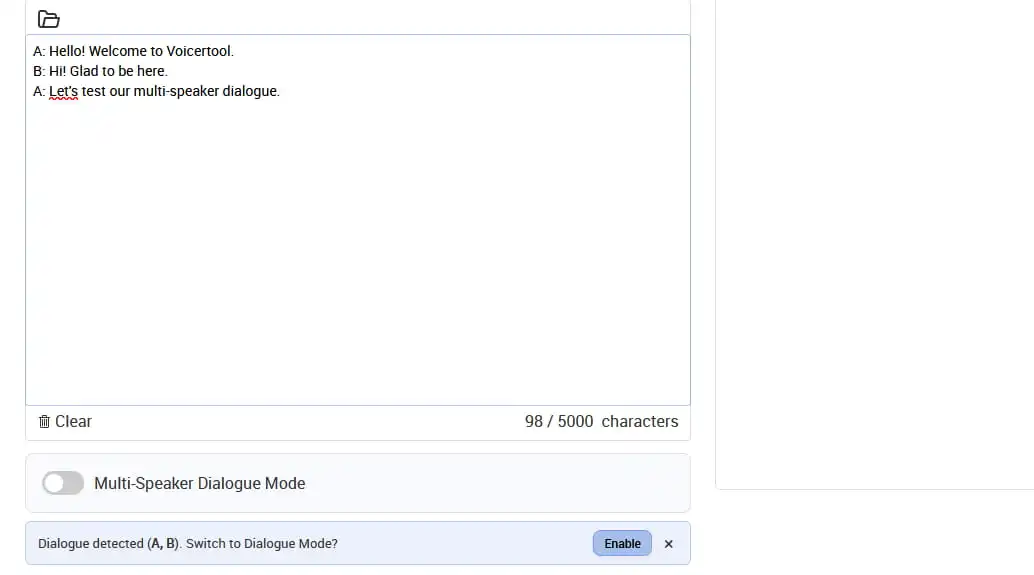
As soon as you paste a dialogue format, Voicertool automatically recognizes the speakers and shows a prompt below the text area: Dialogue detected. Switch to Dialogue Mode? Click Enable (or toggle Multi-Speaker Dialogue Mode manually under the text box).
If you just want to test how it works first, turn on Dialogue Mode and click the Example button to load a sample conversation.
2. Assign Voices and Mix Different Languages
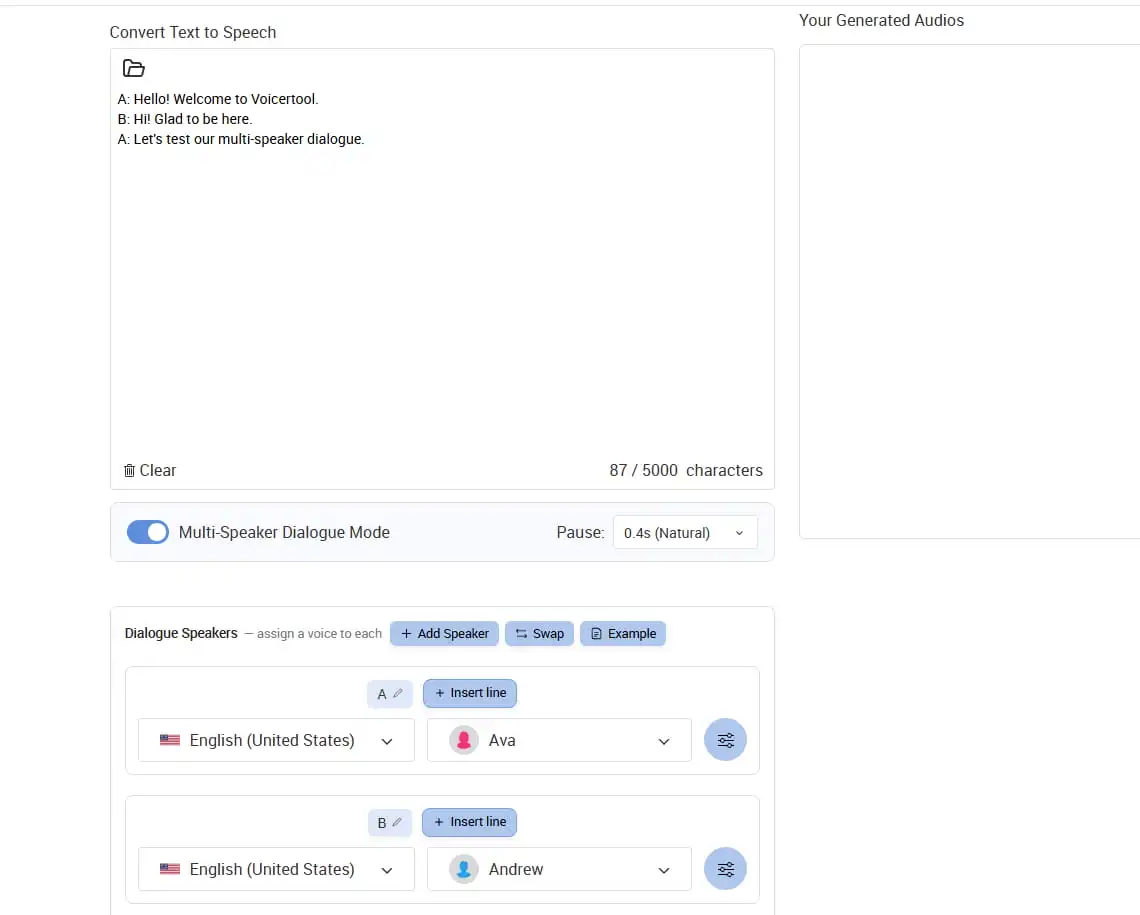
Once Dialogue Mode is active, the Dialogue Speakers panel appears with a separate card for every character found in your script. Here is how you can set up your cast:
- Rename speakers: Click the speaker badge (like A or B) to rename it to your character's actual name (for example, Emma or Liam). The script updates cleanly to match.
- Choose country and voice: Select from over 300+ AI voices across 70+ languages. You can even mix different languages in the same conversation—for instance, having one speaker talk in English and another reply in Spanish, German, or Japanese.
- Add or swap speakers: Use Add Speaker for group discussions, Swap to quickly switch voices between two speakers, or Insert line to append a new line for a specific character directly into your script.
3. Customize Pitch, Speed, Volume, and Pauses
Real people don't speak at the exact same pace or tone. Inside each speaker's settings, you can adjust Pitch, Speed, and Volume independently. Making one speaker 5% faster and slightly higher-pitched immediately makes a two-person conversation sound much more natural.
Next to the Dialogue Mode toggle, use the Pause dropdown to control the silence gap between lines:
| Pause Setting | Duration | Best Use Case |
|---|---|---|
| Fast | 0.2s | Fast-paced TikTok/Reels skits, arguments, or snappy ads. |
| Natural (Default) | 0.4s | Podcasts, interviews, and everyday conversations. |
| Medium | 0.8s | Language-learning lessons and educational dialogues. |
| Long | 1.5s | Audiobooks, dramatic scenes, or pauses for listener reflection. |
4. Generate Your MP3 and Synced SRT Subtitles
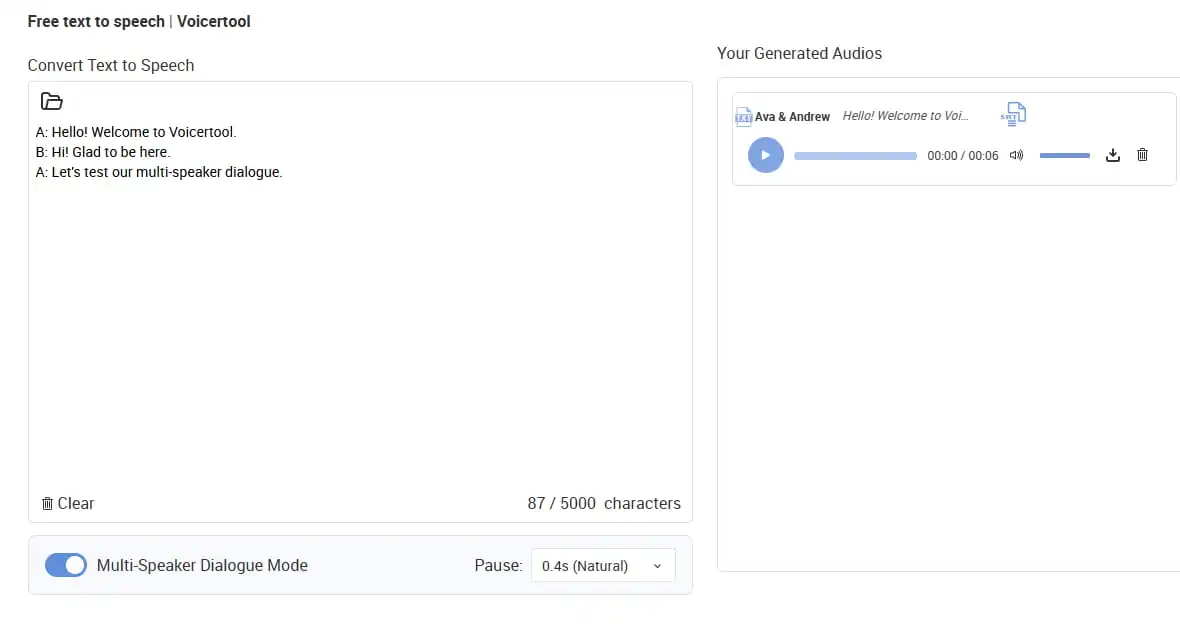
Choose between Standard Quality or High Quality MP3, then click Generate speech.
Voicertool processes each line with its assigned voice settings, inserts your chosen pause duration between speakers, and merges everything into a single downloadable MP3 file.
Along with the audio, you get a synced .srt subtitle file. Because the timestamps are calculated directly from the generated audio segments and your chosen pause durations, you don't need to waste time fixing auto-caption typos in CapCut or Premiere Pro—every subtitle line stays aligned with the spoken audio.
3 Ready-to-Use Dialogue Templates
Copy and paste any of these templates into Voicertool to test different setups.
1. Bilingual Language-Learning Lesson
Recommended setup: Set Speaker 1 to an English voice, Speaker 2 to a Spanish (or any target language) voice, and Pause to 0.8s (Medium).
Teacher: How do you ask for the check at a restaurant?
Student: ¿Me puede traer la cuenta, por favor?
Teacher: Great! Now try saying it a bit faster.
Student: ¿Me puede traer la cuenta, por favor?
2. Short-Form Video Skit (YouTube Shorts / TikTok)
Recommended setup: Pause at 0.2s (Fast), slightly higher pitch for Maya, lower pitch for Leo.
Maya: Tell me you didn't forget to hit record.
Leo: Define "forget."
Maya: Leo, we just talked for forty minutes!
Leo: Look on the bright side—now we can practice it again.
3. Tech Podcast Intro
Recommended setup: Pause at 0.4s (Natural), two contrasting voices (e.g., US English + UK English).
Alex: Welcome back to the show. Today we are looking at how AI voice tools are changing solo video production.
Sarah: Honestly, the biggest shift isn't just voice quality anymore—it's how fast you can go from a rough script to finished audio and captions.
Alex: Exactly. Let's break down how that workflow actually looks in practice.
Quick Tips for Better-Sounding AI Dialogues
- Use punctuation for pacing: Commas, question marks, exclamation points, and ellipses (...) directly guide the AI's intonation and breathing.
- Keep speakers on separate lines: Always start a new line when the speaker changes (Name: text) so the parser splits the voices cleanly.
- Download in High Quality for video editing: If you plan to add background music or export your video for YouTube, switch to High Quality before generating.
Open Voicertool’s free text to speech converter, switch on Multi-Speaker Dialogue Mode, and try generating your first multi-voice audio and SRT file—no account required.